

How to Fix Browser Games Not Loading, Lagging or Crashing
A browser game that stops loading does not necessarily have a problem with its game files. Graphics compatibility, insufficient memory, internet interruptions, browser extensions, and storage limitations can all prevent successful initialization.
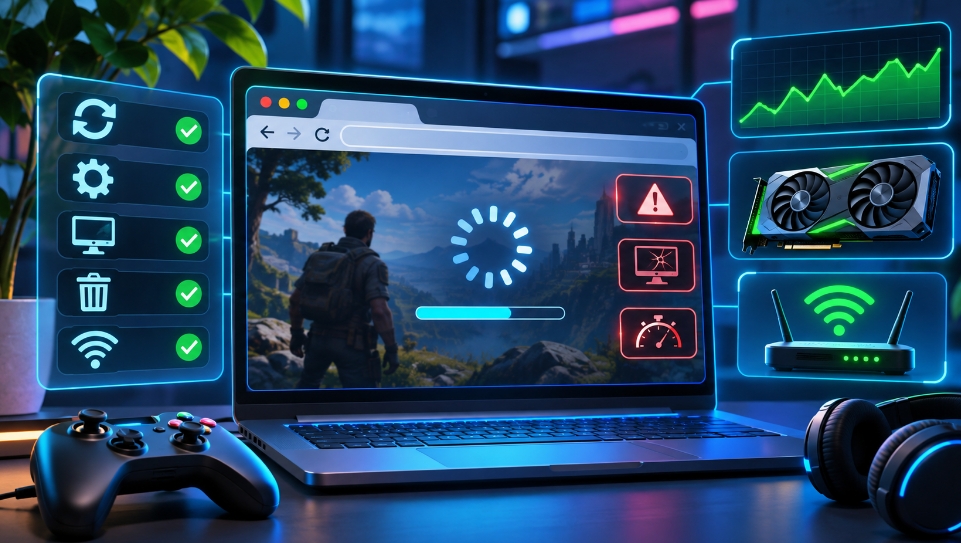
These issues become particularly noticeable in games that use advanced three-dimensional graphics or large environments. Identifying the source of a problem is more effective than repeatedly refreshing the page or changing several unrelated settings.
This guide covers common browser gaming problems, WebGPU errors, low frame rates, crashes, and interrupted loading screens.
Identify the Problem Before Changing Settings
Different technical issues can produce similar symptoms. For example, a black screen may result from either a graphics initialization error or an incomplete resource download.
| Problem | Possible cause | Recommended action |
|---|---|---|
| Loading stops at a fixed percentage | Resource or initialization error | Review available diagnostics |
| Black screen | Graphics rendering problem | Check graphics acceleration |
| WebGPU error | Incompatible graphics configuration | Update drivers and browser |
| Game runs slowly | Excessive processing requirements | Reduce graphics settings |
| Browser tab crashes | Memory pressure or software error | Close unnecessary applications |
| Controls do not respond | Game window lacks input focus | Click inside the game window |
| Frequent disconnections | Unstable network connection | Check internet stability |
| Saved progress disappears | Local data was removed | Restore a backup if available |
Start with the solution most closely associated with the displayed symptoms.
How to Fix a Game Stuck on the Loading Screen
Large browser games may need additional time to prepare resources during their initial launch. A loading indicator that continues moving usually means that the initialization process is still active.
However, if progress remains unchanged for an extended period or an error message appears, try the following:
- Check whether the game displays a specific error.
- Close other demanding browser tabs.
- Confirm that your internet connection is working.
- Check available system memory and disk space.
- Close the game tab and open it again.
- Select a lower graphics preset when available.
- Try another browser supported by the game.
- Check whether the problem persists.
Do not immediately clear all browser data. Doing so may remove previously downloaded resources and saved progress.
How to Enable Graphics Acceleration
Graphics acceleration allows the browser to use compatible graphics hardware for rendering and other supported tasks.
In Google Chrome, follow these steps:
- Enter
chrome://settings/systemin the address bar. - Find the graphics acceleration setting.
- Enable Use graphics acceleration when available.
- Relaunch Chrome.
- Enter
chrome://gpuin the address bar. - Review the Graphics Feature Status information.
Microsoft Edge provides similar settings, and its graphics diagnostics can be accessed through edge://gpu.
If graphics acceleration remains unavailable, the problem may involve outdated drivers, unsupported hardware, or browser compatibility restrictions.
How to Fix the No WebGPU Adapter Error
WebGPU provides access to graphics processing capabilities used by supported browser applications. Some advanced game adaptations rely on this technology to render complex environments.
An error such as No WebGPU adapter indicates that the application could not obtain a suitable graphics adapter.
Possible solutions include:
- Updating the browser.
- Updating graphics drivers from the hardware manufacturer.
- Enabling graphics acceleration.
- Restarting the browser after changing settings.
- Selecting the dedicated graphics card on supported computers.
- Checking the game’s operating system requirements.
- Trying another officially supported configuration.
A computer may support WebGL without fulfilling the WebGPU requirements of a particular game. If the hardware or software configuration remains incompatible, changing ordinary graphics settings may not resolve the problem.
Avoid disabling security protections or overriding graphics compatibility restrictions to force the game to launch.
How to Increase FPS in Browser Games
FPS represents the number of frames displayed each second. A low frame rate can make movement appear interrupted and reduce the responsiveness of controls.
For locally processed games, performance improvements generally involve reducing the amount of work required from the processor and graphics hardware.
| Setting | Suggested adjustment |
|---|---|
| Resolution | Reduce the rendering resolution |
| Shadow quality | Select Low or disable when available |
| Texture quality | Reduce when video memory is limited |
| Draw distance | Decrease the number of distant objects |
| Anti-aliasing | Select a less demanding option |
| Visual effects | Disable unnecessary effects |
| Traffic density | Reduce the number of simulated vehicles |
| FPS limit | Select a stable and achievable target |
Begin with resolution and shadow adjustments, as these can influence rendering performance considerably.
A stable 30 FPS may provide a more consistent experience than attempting to maintain 60 FPS when the hardware cannot reliably achieve it.
How to Reduce Network Lag and Input Delay
Low frame rates and network lag are different problems. FPS measures rendering performance, while network latency describes delays in communication between systems.
Cloud gaming and online multiplayer games are particularly sensitive to unstable connections.
To improve network conditions:
- Use a wired internet connection when possible.
- Move closer to the router when using Wi-Fi.
- Pause large downloads and file synchronization.
- Close unnecessary video streaming applications.
- Reduce cloud streaming quality when available.
- Avoid overloaded network connections.
- Check whether other devices are consuming substantial bandwidth.
These adjustments may improve connection stability, but they will not necessarily increase FPS in locally processed games.
Why Do Browser Games Keep Crashing?
Crashes can occur when a browser tab consumes excessive memory, encounters incompatible graphics features, or experiences a software error.
Computers with limited RAM may struggle when several demanding applications operate simultaneously.
If crashes occur repeatedly, restart the browser and launch only one game. Select a lower graphics configuration and disable optional modifications if the game supports them.
Browser extensions can also interfere with particular loading processes. Testing with a clean browser profile can help identify compatibility issues without removing your existing settings.
How to Fix Missing Textures and Graphical Errors
Missing objects, unusual colors, flickering textures, and incomplete environments can indicate rendering problems or unavailable game resources.
Try restarting the game with its default graphics configuration. If custom modifications are enabled, disable them temporarily and test the unmodified version.
Update your graphics drivers if the problem occurs in several unrelated games. When graphical errors appear exclusively in one browser adaptation, they may be associated with its implementation rather than your computer.
Not every visual problem can be resolved through user settings.
How to Clear Browser Game Data Safely
Removing stored website data can sometimes resolve problems involving outdated or damaged resources. However, this procedure can also remove settings, downloaded game content, and locally stored saves.
Before clearing data:
- Check whether the game offers save export.
- Create a backup of important progress.
- Confirm which website data will be removed.
- Close active gaming sessions.
- Remove only the affected website’s data when possible.
- Restart the game and allow its resources to download again.
Clearing website data should generally be considered after less disruptive troubleshooting methods have failed.
What to Do If Nothing Works
Some browser game problems originate within the game itself. Incomplete adaptations, unsupported features, and programming errors cannot always be resolved through local configuration changes.
Record the displayed error message, browser version, operating system, graphics hardware, and the point at which loading fails. These details can help identify whether the problem involves device compatibility or the game implementation.
Fiveplay.lol is focused on browser gaming experiences that can have different technical requirements. Understanding those requirements and applying appropriate troubleshooting methods can help players avoid unnecessary configuration changes and improve the stability of compatible games.
