

How to Play PC Games in Your Browser Without Installation
Playing PC games through a browser provides an alternative to downloading and installing conventional gaming applications. Modern web technologies support various gameplay experiences, ranging from football matches and racing competitions to open-world exploration and physical simulations.
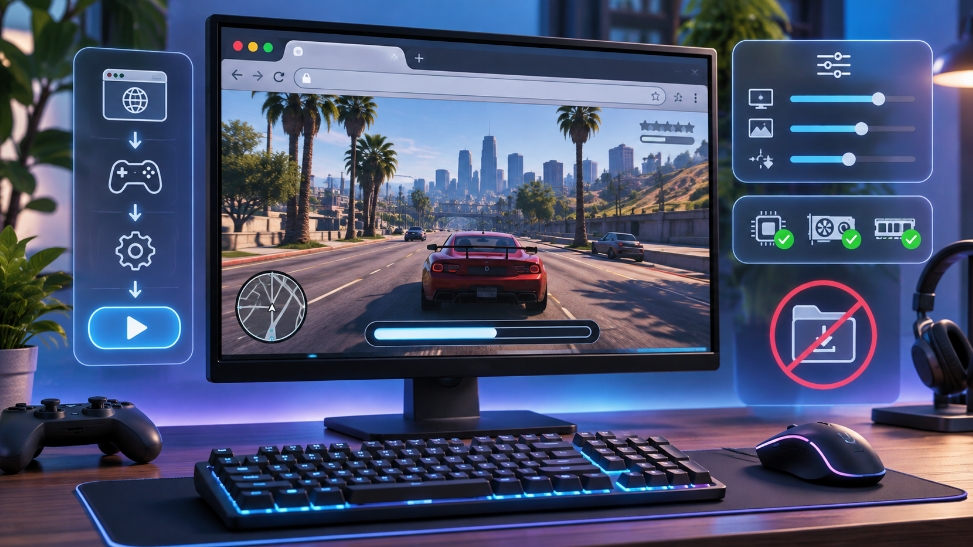
However, launching a demanding three-dimensional game requires different preparation from starting a lightweight arcade title. Players must consider browser compatibility, hardware capabilities, available memory, storage requirements, and the technical implementation of the selected game.
This guide explains how to prepare your computer, launch browser games, configure controls, and manage saved progress.
Choose a Suitable Browser
An updated browser provides access to newer graphics technologies, performance improvements, and compatibility features.
Games developed using WebAssembly, WebGL, or WebGPU may have specific browser requirements. Some adaptations are optimized for Chromium-based browsers, while others support additional browser engines.
| Browser | General characteristics |
|---|---|
| Google Chrome | Supports modern web technologies and graphics acceleration |
| Microsoft Edge | Chromium-based browser with gaming-related features |
| Brave | Chromium-based architecture with additional privacy controls |
| Opera GX | Includes resource management features |
| Mozilla Firefox | Supports numerous web gaming technologies |
| Safari | Compatibility depends on operating system and game requirements |
Always check the requirements of the selected game. Supporting WebAssembly does not automatically guarantee compatibility with every graphics feature.
Check Your Computer Before Playing
Browser games do not necessarily have lower hardware requirements than installed games. Locally processed adaptations still use the computer’s processor, memory, and graphics hardware.
Before launching a demanding game:
- Update your browser to a stable version.
- Install appropriate graphics driver updates.
- Enable browser graphics acceleration.
- Close unnecessary applications and browser tabs.
- Make sure sufficient RAM is available.
- Check available storage space.
- Connect your laptop to a power source.
- Confirm that your internet connection is stable.
Lightweight games generally require less preparation. Larger open-world environments and vehicle simulations may need substantially more resources.
How to Launch a Game
Fiveplay.lol focuses on making different gaming experiences accessible through a browser-based environment. The launch procedure depends on how each individual game is implemented.
A typical process involves the following steps:
- Select the game you want to explore.
- Review its description and available instructions.
- Open the game window or launcher.
- Select a gameplay mode when available.
- Choose appropriate graphics settings.
- Begin loading the game.
- Allow the necessary resources to download.
- Click inside the game window to activate its controls.
- Begin playing once initialization is complete.
Some games start immediately, while others display a configuration menu before loading. A large game may require additional time during its first launch because textures, models, audio files, and other resources must be prepared.
Avoid repeatedly refreshing the page while the loading process is progressing normally.
Understanding Browser Game Controls
Control schemes vary according to the game genre. Some games use only a few keyboard inputs, while others reproduce more complicated control systems associated with traditional PC games.
| Control | Common function |
|---|---|
| W, A, S, D | Character movement or vehicle control |
| Arrow keys | Movement and directional input |
| Mouse | Camera movement, aiming, or interaction |
| Spacebar | Jumping, braking, or another assigned action |
| Shift | Sprinting or acceleration |
| Esc | Pause menu or mouse release |
| Enter | Confirmation or menu interaction |
These assignments are general examples rather than universal controls.
If keyboard input moves the surrounding webpage instead of the character, click inside the game window. First-person games may also request permission to capture the mouse pointer.
Some browser games support compatible controllers. Connect the controller before launching the game and review its available control settings.
How to Choose Appropriate Graphics Settings
When a game includes graphics configuration options, begin with moderate or low settings rather than immediately selecting maximum quality.
Settings that can influence performance include:
- Rendering resolution.
- Texture quality.
- Shadow detail.
- Draw distance.
- Environmental effects.
- Anti-aliasing.
- Frame rate limits.
- Vehicle and character density.
Test the game after changing one or two options. This makes it easier to identify which settings have the greatest effect on performance.
A consistent frame rate generally provides better control than higher graphics quality accompanied by frequent interruptions.
Do Browser Games Download Files?
Playing without installation does not mean that no data is downloaded. Locally processed browser games may need to retrieve substantial quantities of resources before gameplay begins.
These resources can remain in browser storage, allowing subsequent sessions to reuse previously downloaded content. However, storage limits and browser settings influence whether this data remains available.
Cloud gaming operates differently. Instead of downloading the complete game environment, players receive a continuous audiovisual stream from a remote system.
Both approaches require data transfer, although the timing and purpose of that transfer differ.
How to Save Progress in Browser Games
Saved progress may be stored locally, associated with an account, or managed through an integrated export system.
To reduce the possibility of losing progress:
- Use the same browser and browser profile.
- Avoid private browsing when long-term saves are important.
- Do not remove website data without checking save options.
- Export save files when the game supports backups.
- Check whether cloud synchronization is available.
- Save your progress before closing the game.
Private browsing sessions generally do not preserve local website data after the session ends.
Can You Play Every PC Game in a Browser?
Not every PC game has a browser-compatible version. Some titles are accessible through cloud gaming, while others have unofficial web adaptations that reproduce selected features of their original gameplay.
Players should evaluate each implementation individually. Story missions, multiplayer functionality, modifications, graphics options, and saving systems may differ from the original installed game.
Browser gaming offers another way to explore familiar genres and discover interactive experiences, but successful gameplay depends on choosing a compatible version and preparing the device appropriately.
